

Demystifying Virtualized Domain Controllers
Using domain controllers in a virtual environment is a contentious and confusing issue. I’m going to start this subject by saying that there is no single correct answer. No one piece of advice is going to work for everyone in every environment. The purpose of this article series is to explain the facts so that you can make an informed decision for your own domain.
One big issue with virtualized domain controllers is that often, the advice given on the subject comes from people who have never actually attempted to use them and have no actual first-hand knowledge. I have tried all of the scenarios that I will write about in this series and can therefore attest to their veracity. I want to begin by dispelling the common myths that are delivered from assumptions.
Table of Contents
The Virtual Domain Controller on Hyper-V “Chicken-and-Egg” Myth
The basic form of this myth is that if a Hyper-V host is the parent for its own domain controller, then it can’t start. This myth comes in many variants. In some, the host can start, but none or only some of the guests can. In others, you can never log in to the Hyper-V console because it can’t talk to a DC until you log in. There might even be a few in which the Hyper-V host steals Zeus’ thunderbolt and slays the DC outright. Fortunately, none of these are true. To ensure that my mythbusting could be backed by hard facts, I did what many will claim is impossible. I took one of my test hosts, evacuated all of its guests, removed it from the domain, and isolated it from the rest of the network through a simple IP change. Then, I designed a new DC from scratch on that host. Finally, I joined the host to that new domain. In case it’s not obvious, there were no other DCs anywhere. When the Hyper-V host requested to be rebooted to complete the domain join, I let it happen. The disastrous results were: none. Everything worked just fine. I logged in as the domain administrator. It was at that point that I realized I had neglected to set the DC VM to start automatically. The DC wasn’t even reachable, yet everything was fine! How can this be!?!! There’s no magic here; AD has worked this way for years. I used Set-VM to fix the issue with automatic start, then Start-VM to get my DC going. That’s it. If for some reason your domain credentials don’t work, those for the local administrator account will. Just like any other server, be sure you keep track of these.
Dealing with Domain Credentials
There are two reasons that this isn’t a problem. The first is that computers don’t really have a pressing need to log in to a domain. They mostly log in to receive group policy updates, to authenticate to other computers, and to participate in authentication for domain accounts that try to access local resources and/or log in locally. The inability to perform these functions doesn’t render the computer inoperable. Most importantly: there is no need to contact a domain controller in order for a Windows-based operating system to start. Furthermore, and this is especially important for Hyper-V, the inability to contact a domain controller only impacts functions and services that are dependent upon domain services. Hyper-V is not one of those services.
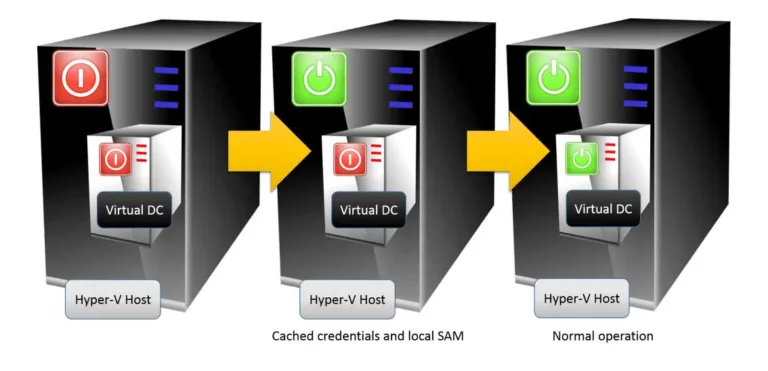
The second reason this isn’t a problem is due to cached credentials. When you log on, your system processes your username and password in a fashion that allows it to verify against the domain controller. It then stores the data for that verification locally. Any time those credentials are needed locally in the future, the machine can use its cached copy to authenticate you if a domain controller is unreachable. In some domains, cached credentials are restricted. The value of doing so is a debate that’s beyond the scope of this article. The point is that they’re available and enabled by default. In general, these won’t cause problems for the typical Hyper-V host, as Hyper-V is a type one hypervisor. It is not even aware of the existence of a domain because it is fully functional before the networking stack even starts. Its management service (Hyper-V Virtual Machine Management — VMMS.EXE) runs under the Local System context and any modifications to that are unnecessary and unsupported. If, for some reason, this behavior is modified, you still have the ability to log in with a local account and manage everything, including re-assigning the service to run under the proper security context.
The following diagram shows the normal operation for a virtualized domain controller that a guest of a Hyper-V host that is a member of the same domain:
Where you might run into issues is third-party applications. It’s not uncommon to have their services run under domain accounts. As previously stated, cached credentials should take care of these. If that turns out to be insufficient, you may need to reconfigure those third-party applications to run as Local System or set up mechanisms that can start their services after the domain controller becomes reachable.
“Physical DC’s are a Necessity” Myth
It’s always a good idea to have multiple DCs. That’s just an axiom. However, there’s no requirement that any of them be physical. This myth originates from a basic fear of some unspecified problem in the virtualization stack. When virtualization was still relatively new and untested, this was a rational precaution. Now, virtualization is a known, predictable entity. If you’ve got a physical DC to hold on to, there’s no need to rush to get rid of it. But, if keeping or creating a physical DC will cause undue stress, don’t do it. One fear is what will happen to other computers in the domain if the physical host containing the DC goes down. The answer is: the same thing that happens when a physical DC goes down. You must accept it as a possibility and plan for it, but it’s hardly the end of your domain. This is part of the reason that cached credentials exist.
“Time Drift is Uncontrollable” Myth
There is a kernel of truth in this myth. Virtualized systems can lose time, sometimes dramatically. Since the DC that holds the PDC emulator role is normally the authoritative time source for a domain, it could just be that it causes everyone to lose time. What makes this a myth is that the problem is addressable. Doing so will be part of the topic of the next post in this series.
Disclaimer: I’m going to be talking about several Active Directory topics in this post. I will not be stopping to explain them in any real detail. If your AD knowledge is somewhat lacking, you should still be able to get through this article without a great deal of difficulty. Personally, I learned Active Directory by attending MCT-led courses, studying for the exams, and working in the real world since the first release of Active Directory. So, I don’t know of any good tutorials on the subject.
Assess Your Situation
Before you begin, determine what you want your final domain controller situation to look like, how small failures will be handled, and how you’ll recover from any catastrophic disasters. How many domain controllers do you need? Where should they be placed? Should domain controllers be highly available? What will the backup schedule look like? The answers to these questions will draw the most definite picture of what your final deployment should look like.
How Many Domain Controllers are Necessary?
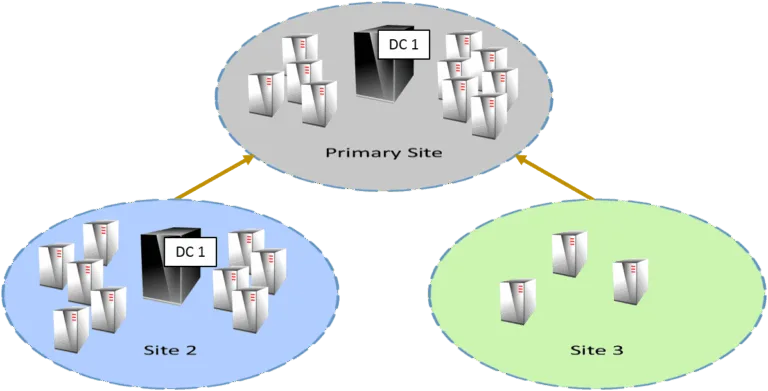
This is the first question you should answer. If you’re a small shop with a single location, you can shortcut this question. A single domain controller can easily handle thousands of objects. Any extra DCs are for resiliency, not capacity. If you have multiple sites, try to place at least one domain controller in each site and make sure you notify AD about them so authentication and replication traffic is properly handled. If you need more in-depth help, refer to TechNet’s thorough article on the subject.
Do I Really Need a Second Domain Controller?
I know that the purists are going to say, “Absolutely.” But usually, those purists have never been at the mercy of a small business operating budget where you just don’t have an extra stack of cash lying around to do nothing but domain services. For most of my career, the vast majority of companies I worked for/with used only a single DC and everything was fine. There are actually some benefits to this:
- Saves on Windows licensing and hardware costs; this is the primary reason many choose to do it
- USN rollback is impossible; this is important in a small environment, as technical resources with the capacity to detect it and the expertise to correct it are in short supply
- If Bad Things should occur, restore of domain services is extremely simple in a single DC environment
Now, with virtualization, the single DC environment is pretty low-risk. A small business could run Hyper-V Server on a host with two guests, one running domain services and the other running the company’s other services. This only requires a single Windows Server license and satisfies the best practice of separating domain services from other server applications. This could all then be backed up using any Hyper-V-aware solution (as a shameless plug, Hornetsecurity Backup Hyper-V would handle this scenario with its free edition). This is a solution that I wish I had access to many years ago, as it would have fundamentally changed the way I worked with many small business customers.
Where Should I Place Domain Controllers?
Try to keep multiple domain controllers off the same hardware, if possible. If you’ve only got a single physical server-class system, then having two domain controllers may not be worth the effort. I’ll return to this in the highly available section.
As previously mentioned, you’ll want at least one domain controller per site, if possible. This is certainly not the hard and fast rule some would like it to be. If a remote site is only going to have a handful of users, no other need for a local server, and a fairly reliable connection to the primary site, it’s not really worth having its own DC. The exception I sometimes make to this is if DNS resolution needs to be snappy and the intersite link isn’t. Then I might recommend a DC with DNS in that site. This would be a good place to tangent into read-only DCs, if I were so inclined.
This question isn’t limited to geography. You’ll also decide which to have virtual and which to have physical. If your capacity assessment determines that your DCs are going to be under a heavy load, you might consider not virtualizing. Remember that a primary goal of virtualization is the consolidation of server software to more fully utilize hardware; any software that is fully utilizing its hardware is generally not the best candidate for virtualization. A secondary reason is portability, but domain services have very little to gain from such portability. However, each additional domain controller reduces the overall load, so dispersing domain controllers as VMs across numerous Hyper-V hosts may reduce your hardware reliance.
If you want to try to balance across physical and virtual, with the physical machines being more dependent on hardware, remember that global catalog DCs work a bit harder than non-GC machines.
One thing you really don’t want to do is place domain controllers on SMB 3 storage, at least not all of them. SMB 3 storage requires the ability to validate incoming connections against a DC, so you could wind up with a true “chicken and egg” scenario if your DCs are all on SMB 3 storage. Of course, you could also log into the file servers with local accounts, copy the files off by whatever means, and then import them or create new VMs around the VHDs and start them that way. So, even if you make this mistake, there’s a fix.
Should Domain Controllers Be Highly Available?
As a general rule, I recommend not making domain controllers highly available. Domain controllers post-NT 4.0 are designed as a multi-master system, meaning that for the most part, no single domain controller is in charge. Even though you’ll still hear people refer to the BDC (backup domain controller), there really is no such beast from Windows Server 2000 and onward. So, if you have multiple domain controllers, Active Directory is already highly available and won’t benefit much from being on virtual machines that are highly available.
This isn’t a universal truth. There are five flexible single master operation (FSMO) roles. I suggest that you consider allowing the machine(s) that hold these roles to be highly available, since there are a handful of domain operations that cannot be carried out when one or more of these roles are not available. However, it’s fairly trivial to transfer or seize these roles in the event of any outage of a FSMO system, so there’s no driving need to configure them as HA VMs.
Backup
Having good backups of your domain controller(s) means that you’ll be prepared for just about anything. In order to get a solid backup, all you really need is to capture the System State of domain controller systems. You don’t even necessarily need to capture every DC. You do want to ensure you backup at least one global catalog and every system that contains a FSMO role. Also, ensure that you’re capturing the DNS database, as Active Directory and DNS are highly intertwined. For small businesses, all these roles can be contained in a single system. If you have two DCs, have them both run DNS as well, and take full backups.
How often you backup the domain is up to you. I strive for nightly, but environments that don’t change often don’t necessarily need this level of protection. Just remember that you can only restore the environment to the state of its last backup. If once a week is acceptable, then back up once a week.
A much more pressing question is the retention policy. I would ensure that you at least have enough backups to cover the past couple of weeks. I’ve seen some locations that only keep a single backup of the domain, and this is just not sufficient. Damage that occurs to the domain may not be noticed right away, especially in a small environment. Anything more than a couple of months is probably not worth it. Be aware that if you have multiple DCs, performing a restore of one older than two months can cause deleted objects to reappear in the directory.
If you’re new to the idea of Active Directory backup and restore, make sure you perform some research. A single DC environment is straightforward; for multiple DCs, make sure you understand authoritative vs. non-authoritative restores and that you know how to perform each type using your selected backup software.
The Problem of Time Drift
This is the largest hurdle to having a virtualized domain controller. The issue is that the clock in Windows systems is tracked as a low-priority thread. In a physical system, this can lead to clock drift when the CPU is busy. In a virtual system, there’s an extra layer of distance to the CPU, so clock drift is even more likely. Actually, let me clarify that: clock drift in a Windows environment is completely unavoidable. It’s happening all the time.
In a Windows domain, time is (by default) synchronized to the domain controller that holds the PDC emulator role. If that’s virtualized, what do you do? First, make sure the host’s CPUs aren’t under a lot of strain. That will cause time drift.
Next, configure your domain to pull from an external time source.
reg add HKLMSYSTEMCurrentControlSetServicesW32TimeTimeProvidersVMICTimeProvider /v Enabled /t reg_dword /d 0Update: This is now an outdated practice. Completely disable time synchronization for virtualized domain controllers.
If you continue having issues with time drift, the first thing you need to check is the CPU load of the VM’s host. If you can’t lighten the load or move the PDC emulator VM, you can reduce the update intervals indicated in that blog post/KB article.
If you’re going to keep a physical DC, make that the domain’s authoritative time system.
Best Practices with Virtualized Domain Controllers
The most important thing is to not snapshot domain controllers. If you are using domain controllers that are Windows Server 2012 or later and your hypervisor is Hyper-V Server 2012 or later, then there is a new VM-Generation ID attribute that can keep reverted snapshots from causing a USN rollback. However, you should just avoid snapshotting your domain controllers as a rule. Of course, I also know that a lot of smaller shops will be combining roles. But, if you’ve only got one DC, USN rollback is impossible. In any case, be aware of the issue.
You should also avoid using Saved State with domain controllers. The risks aren’t nearly as severe as with snapshots. Mostly what you need to worry about is a long-saved DC causing tombstoned objects to become reanimated.
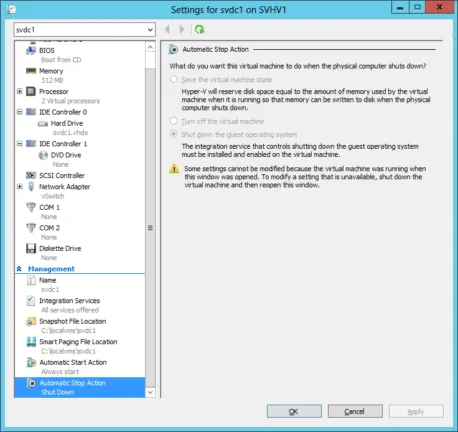
You’ll want to have domain controllers stop automatically when the host is shut down:
Don’t get fancy with domain controllers. Cloning them is OK starting with 2012, but deploying a new DC from scratch is very simple. If you have a small domain, initial replication doesn’t take long. So, there’s no value in taking risks with DCs.
Try to keep other roles and applications off your DCs. Domain controllers do not have a local security database, which can cause odd problems with applications and services that expect them. Domain controllers have their own group policy settings, and DCs should never be moved from their organizational unit. Also, any application that depends on objects covered by a System State backup/restore (the COM+ repository especially) will be inextricably intertwined with DC backup/restore.
Leave Write Caching Alone
On 2012 and 2008 R2 (2012 R2+ is safe), there was a bug that caused Hyper-V to incorrectly report the status of write caching to guest operating systems using IDE drives. When a domain controller starts, it disables write caching. Hyper-V doesn’t allow this function. When all is well, the domain controller will log Event ID 32 (The driver detected that the device <<IDE DRIVE>> has its write cache enabled. Data corruption may occur.” That lets you know that Hyper-V is correctly telling it that its attempt to disable write caching failed. The message is incomplete. It should be appended with: “, therefore Active Directory will use a non-caching I/O method for updating the directory.” If you do not see this message in your domain controllers’ logs shortly after boot-up and the domain controller is using vIDE, that’s when you have a problem. Ensure that you have KB2853952 installed on the host (again, not for 2012 R2+).
Examples
To help you in your own configurations, I will describe the two methods that I’ve used with Hyper-V.
The first was on Hyper-V Server 2008 R2 with Service Pack 1. There are two nodes in a cluster. Each node runs a non-highly-available DC on internal storage. There is a highly-available DC stored on a CSV that runs all 5 FSMO roles. There is another DC in a remote site (physical). This cluster will start from a complete power-off state without being able to reach the DC in the remote. There is a delay in accessibility of the CSV until at least one of the DCs is started.
The second is in my test lab and is much like my first. The differences are that it’s been on Hyper-V Server 2012 most of its life, I don’t have any highly available DC, and there is no other DC anywhere. This cluster and domain will also start from a cold power-off state with no problems. To reiterate, this configuration has no physical DC anywhere.
Summary
The primary point of this series is that it’s entirely acceptable to virtualize your domain controllers and eliminate physical DCs entirely. There is never a requirement for a physical DC. You need to carefully plan your deployment and recovery scenarios — just as you would for a completely physical deployment. There is no single correct way, so design a solution that fits your scenario. Due to excellent reader feedback and questions, there will be a third installment to this series that will look at troubleshooting and potential failure scenarios.